> ## Documentation Index
> Fetch the complete documentation index at: https://trygradient.ai/docs/llms.txt
> Use this file to discover all available pages before exploring further.
# Single sign-on (SAML and OIDC)
> Connect your identity provider so your team signs in to Gradient with their company account
# Single sign-on (SAML and OIDC)
Single sign-on lets your team sign in to Gradient with the account they already have at work.
Your identity provider decides who has access, and it can also decide what
[role](/docs/concepts/members-and-permissions) each person holds.
Gradient supports **SAML 2.0** and **OIDC**, with ready-made options for Okta, Microsoft Entra ID,
and Google Workspace, plus a custom option for any other provider.
Single sign-on is an enterprise feature. If you do not see **Settings, Identity and SSO**,
contact your Gradient representative to turn it on for your organization.
## What you need
* A Gradient **owner** account. Identity settings are owner-only.
* An administrator account at your identity provider, with permission to create applications.
* About 20 minutes, plus the time your identity team needs to send you their metadata.
You do not have to finish in one sitting. A connection you create stays in a **pending** state
until the metadata exchange is complete, and a pending connection cannot sign anyone in. Nothing
changes for your team until you finish.
***
## Choosing between SAML and OIDC
Both protocols sign people in equally well. They differ in **where Gradient roles can come from**,
and that is the whole decision.
| Your setup | Roles come from | Notes |
| -------------------------------- | ---------------------------------------- | ----------------------------------------------------------------------------------------------- |
| **OIDC + directory sync (SCIM)** | Your directory groups, through SCIM | Recommended if you use OIDC. Roles update when the directory changes, not only at next sign-in. |
| **SAML** | The `groups` claim on the SAML assertion | Use when directory sync is not in scope. |
| **OIDC on its own** | Not your identity provider | Sign-in is federated, roles are not. You set roles in Gradient or grant them by email domain. |
An OIDC connection cannot map groups to roles. This is a limit of our identity platform, not of
the protocol, and the role assignment controls do not appear at all on an OIDC connection. If
you want OIDC **and** directory-driven roles, plan for
[directory sync (SCIM)](/docs/guides/scim) at the same time.
***
## Part 1: Create the connection in Gradient
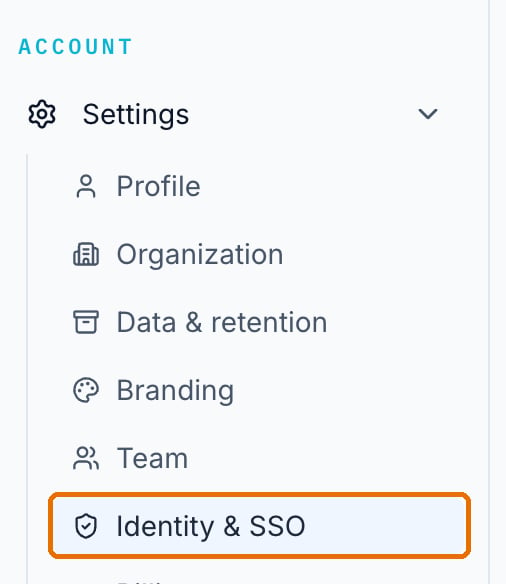
1. In Gradient, go to **Settings, Identity and SSO**.
 2. On the **Single sign-on** card, click **New connection**. Choose your identity provider and
protocol, then give the connection a display name your team will recognize, for example
"Acme (Okta)".
2. On the **Single sign-on** card, click **New connection**. Choose your identity provider and
protocol, then give the connection a display name your team will recognize, for example
"Acme (Okta)".
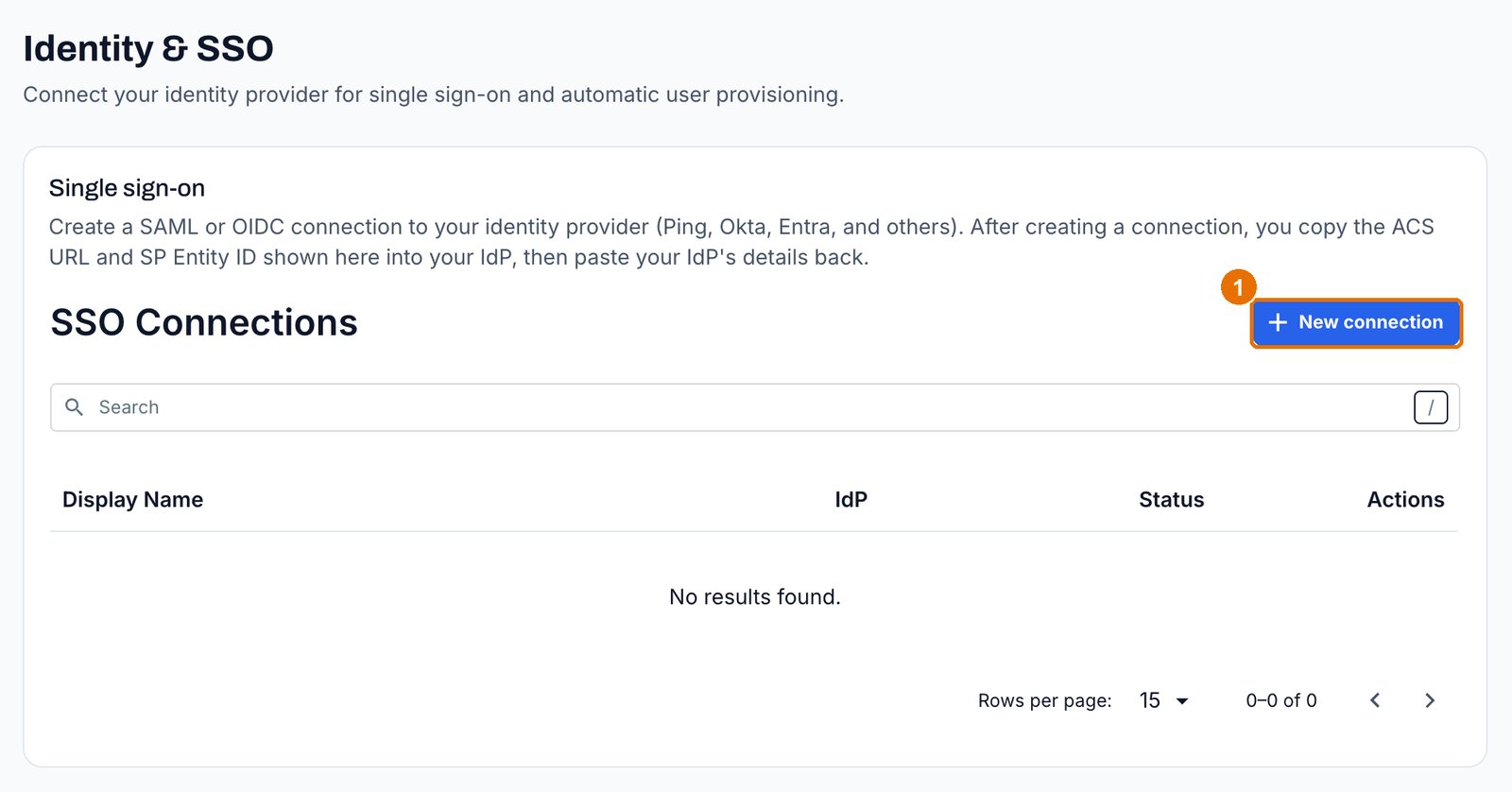 The list offers Okta and Microsoft Entra ID in both protocols, Google Workspace in SAML, and a
custom option for each protocol.
3. Copy the values Gradient shows. They differ by protocol:
| Protocol | Copy from Gradient |
| -------- | ------------------------------------------------------------------------------------------- |
| SAML | **ACS URL**, also called the reply URL, and **SP Entity ID**, also called the audience URI. |
| OIDC | **Redirect URI**. |
***
## Part 2: Set up the application in your identity provider
Do this in your identity provider, or send the values to the team that administers it.
### If you chose SAML
1. Create a new SAML application for Gradient.
2. Paste the **ACS URL** and the **SP Entity ID** from Part 1 into the application.
3. Set the name ID to the user's **email address**. Gradient identifies people by email.
4. Save the application, then collect three values from it: the **IdP Entity ID**, the
**IdP SSO URL**, and the **X.509 signing certificate**.
5. Back in Gradient, paste those values into the connection and save.
Record the expiry date of the SAML signing certificate now, and set a reminder 30 days before
it. An expired certificate stops every sign-in for your organization at once. See
[Plan for lockout](#plan-for-lockout-before-you-enforce).
### If you chose OIDC
1. Create a new OIDC web application for Gradient, with the **authorization code** grant type.
2. Set its sign-in redirect URI to the **Redirect URI** from Part 1.
3. Save the application, then collect three values: the **Client ID**, the **Client Secret**, and
the **Issuer**.
4. Back in Gradient, paste those three values into the connection and save. Gradient reads the
rest of the endpoints from your issuer automatically, so there is nothing else to copy.
OIDC has no certificate to expire, which removes the most common cause of a sudden
organization-wide sign-in failure.
Either way, the connection becomes **active** once the details are complete. Until then it stays
**pending** and cannot sign anyone in.
***
## Part 3: Map your groups to Gradient roles
Your identity provider can set each person's Gradient role from their directory group. This keeps
permissions in one place: you change someone's group, and their Gradient access follows.
How you do it depends on the protocol you chose.
### With SAML
1. Configure your identity provider to send a **groups** claim on the assertion.
2. In Gradient, go to **Settings, Identity and SSO** and scroll to **Automatic Role assignments**.
Click **Edit**, and map each group to one Gradient role. The same card also grants roles by
email domain or by SSO connection, if you would rather not use groups.
The list offers Okta and Microsoft Entra ID in both protocols, Google Workspace in SAML, and a
custom option for each protocol.
3. Copy the values Gradient shows. They differ by protocol:
| Protocol | Copy from Gradient |
| -------- | ------------------------------------------------------------------------------------------- |
| SAML | **ACS URL**, also called the reply URL, and **SP Entity ID**, also called the audience URI. |
| OIDC | **Redirect URI**. |
***
## Part 2: Set up the application in your identity provider
Do this in your identity provider, or send the values to the team that administers it.
### If you chose SAML
1. Create a new SAML application for Gradient.
2. Paste the **ACS URL** and the **SP Entity ID** from Part 1 into the application.
3. Set the name ID to the user's **email address**. Gradient identifies people by email.
4. Save the application, then collect three values from it: the **IdP Entity ID**, the
**IdP SSO URL**, and the **X.509 signing certificate**.
5. Back in Gradient, paste those values into the connection and save.
Record the expiry date of the SAML signing certificate now, and set a reminder 30 days before
it. An expired certificate stops every sign-in for your organization at once. See
[Plan for lockout](#plan-for-lockout-before-you-enforce).
### If you chose OIDC
1. Create a new OIDC web application for Gradient, with the **authorization code** grant type.
2. Set its sign-in redirect URI to the **Redirect URI** from Part 1.
3. Save the application, then collect three values: the **Client ID**, the **Client Secret**, and
the **Issuer**.
4. Back in Gradient, paste those three values into the connection and save. Gradient reads the
rest of the endpoints from your issuer automatically, so there is nothing else to copy.
OIDC has no certificate to expire, which removes the most common cause of a sudden
organization-wide sign-in failure.
Either way, the connection becomes **active** once the details are complete. Until then it stays
**pending** and cannot sign anyone in.
***
## Part 3: Map your groups to Gradient roles
Your identity provider can set each person's Gradient role from their directory group. This keeps
permissions in one place: you change someone's group, and their Gradient access follows.
How you do it depends on the protocol you chose.
### With SAML
1. Configure your identity provider to send a **groups** claim on the assertion.
2. In Gradient, go to **Settings, Identity and SSO** and scroll to **Automatic Role assignments**.
Click **Edit**, and map each group to one Gradient role. The same card also grants roles by
email domain or by SSO connection, if you would rather not use groups.
 ### With OIDC
Set up [directory sync (SCIM)](/docs/guides/scim) and map your groups there. SCIM group mapping works
whichever protocol people sign in with, so an OIDC organization gets the same directory-driven
roles a SAML one does.
Without SCIM, an OIDC connection cannot take roles from your directory. Grant them by email domain
on the same **Automatic Role assignments** card, or set each person's role at **Settings, Team**.
Use the role names exactly as written, in lower case:
| Gradient role | Use it for |
| ------------- | ------------------------------------------------------------------------------------------------ |
| `owner` | The people who run the account, including billing and identity settings. |
| `admin` | People who set up the workspace: branding, API keys, and integrations. |
| `member` | Your hiring team: they build assessments, invite candidates, and score. Most people belong here. |
| `reviewer` | People who only read candidate reports. |
A group change in your identity provider reaches Gradient within about **five minutes**. A new
sign-in is always current, so ask the person to sign out and in again if they need the change
immediately.
***
## Part 4: Test one sign-in before you enforce
Do not turn on enforcement until one real person has signed in through the connection.
Someone in a mapped group who is not you. Keep your own session signed in on another browser
so you can undo any mistake.
Send them your organization sign-in link, described in
[Sign-in links](#sign-in-links-for-your-team).
Open **Settings, Team**. The pilot user should appear with the role their group maps to. If
the role is wrong, fix the group mapping and have them sign in again.
***
## Part 5: Require SSO for everyone
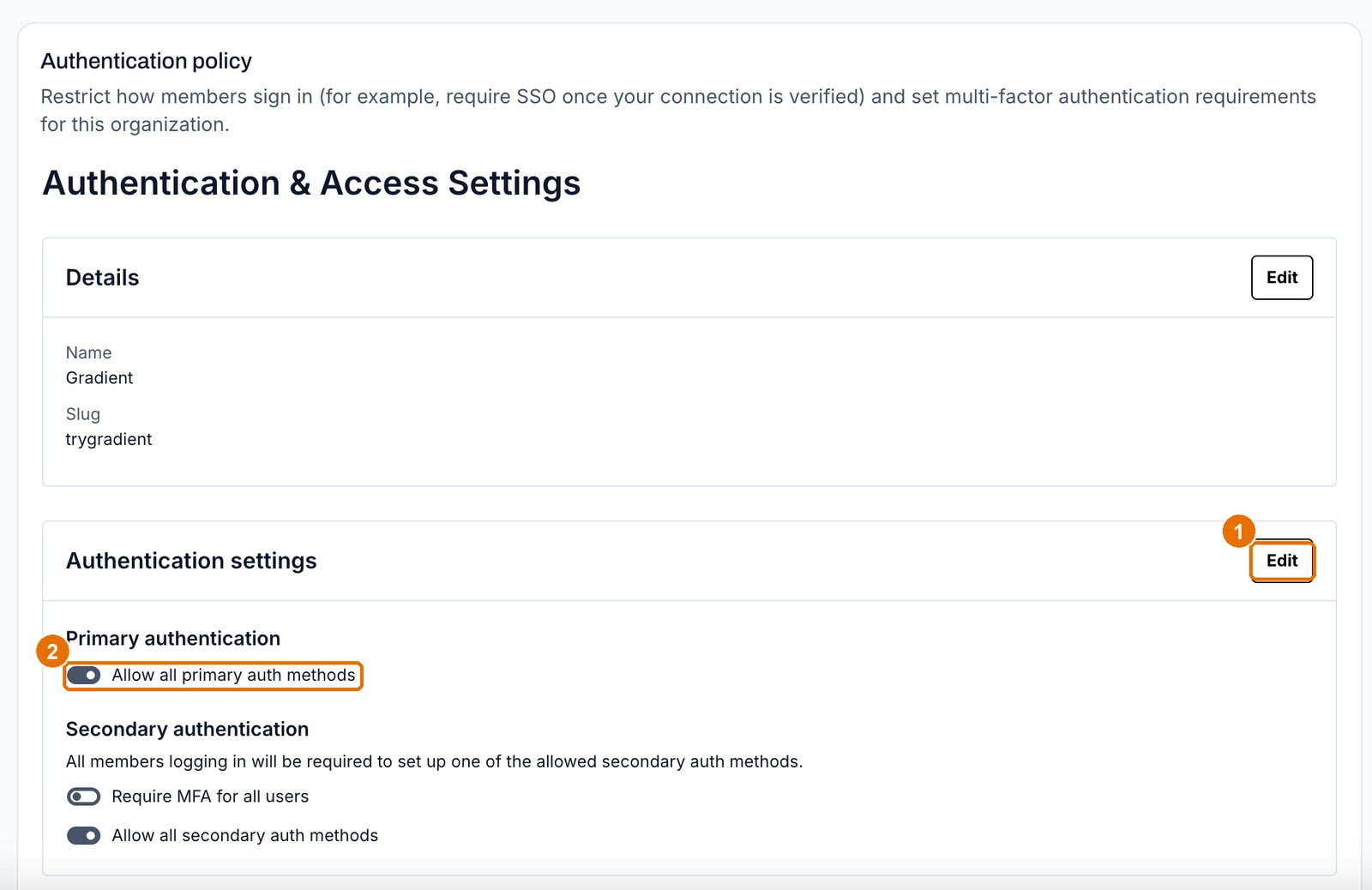
Once a real sign-in works, you can turn off the other ways in. All of these live on
**Settings, Identity and SSO**, in the **Authentication policy** card. Each block has its own
**Edit** button.
Enforcement is only complete when **all three** agree. Your security team will ask about each one.
| Where | What to set | Why |
| --------------------------------------------------- | --------------------------------------------------------------------------- | ------------------------------------------------------------------------------------------ |
| Authentication settings, **Primary authentication** | Turn off **Allow all primary auth methods**, then allow single sign-on only | Closes password, magic link, and Google. Your sign-in page then shows only the SSO button. |
| User onboarding, **JIT Provisioning** | Clear **Email domains**, and empty the **Access control list** | Otherwise anyone with a matching email address still joins without your identity provider. |
| User onboarding, **SSO connections** | Choose **Allowed SSO connections** and pick yours | New people can join through your connection, and no other. |
### With OIDC
Set up [directory sync (SCIM)](/docs/guides/scim) and map your groups there. SCIM group mapping works
whichever protocol people sign in with, so an OIDC organization gets the same directory-driven
roles a SAML one does.
Without SCIM, an OIDC connection cannot take roles from your directory. Grant them by email domain
on the same **Automatic Role assignments** card, or set each person's role at **Settings, Team**.
Use the role names exactly as written, in lower case:
| Gradient role | Use it for |
| ------------- | ------------------------------------------------------------------------------------------------ |
| `owner` | The people who run the account, including billing and identity settings. |
| `admin` | People who set up the workspace: branding, API keys, and integrations. |
| `member` | Your hiring team: they build assessments, invite candidates, and score. Most people belong here. |
| `reviewer` | People who only read candidate reports. |
A group change in your identity provider reaches Gradient within about **five minutes**. A new
sign-in is always current, so ask the person to sign out and in again if they need the change
immediately.
***
## Part 4: Test one sign-in before you enforce
Do not turn on enforcement until one real person has signed in through the connection.
Someone in a mapped group who is not you. Keep your own session signed in on another browser
so you can undo any mistake.
Send them your organization sign-in link, described in
[Sign-in links](#sign-in-links-for-your-team).
Open **Settings, Team**. The pilot user should appear with the role their group maps to. If
the role is wrong, fix the group mapping and have them sign in again.
***
## Part 5: Require SSO for everyone
Once a real sign-in works, you can turn off the other ways in. All of these live on
**Settings, Identity and SSO**, in the **Authentication policy** card. Each block has its own
**Edit** button.
Enforcement is only complete when **all three** agree. Your security team will ask about each one.
| Where | What to set | Why |
| --------------------------------------------------- | --------------------------------------------------------------------------- | ------------------------------------------------------------------------------------------ |
| Authentication settings, **Primary authentication** | Turn off **Allow all primary auth methods**, then allow single sign-on only | Closes password, magic link, and Google. Your sign-in page then shows only the SSO button. |
| User onboarding, **JIT Provisioning** | Clear **Email domains**, and empty the **Access control list** | Otherwise anyone with a matching email address still joins without your identity provider. |
| User onboarding, **SSO connections** | Choose **Allowed SSO connections** and pick yours | New people can join through your connection, and no other. |
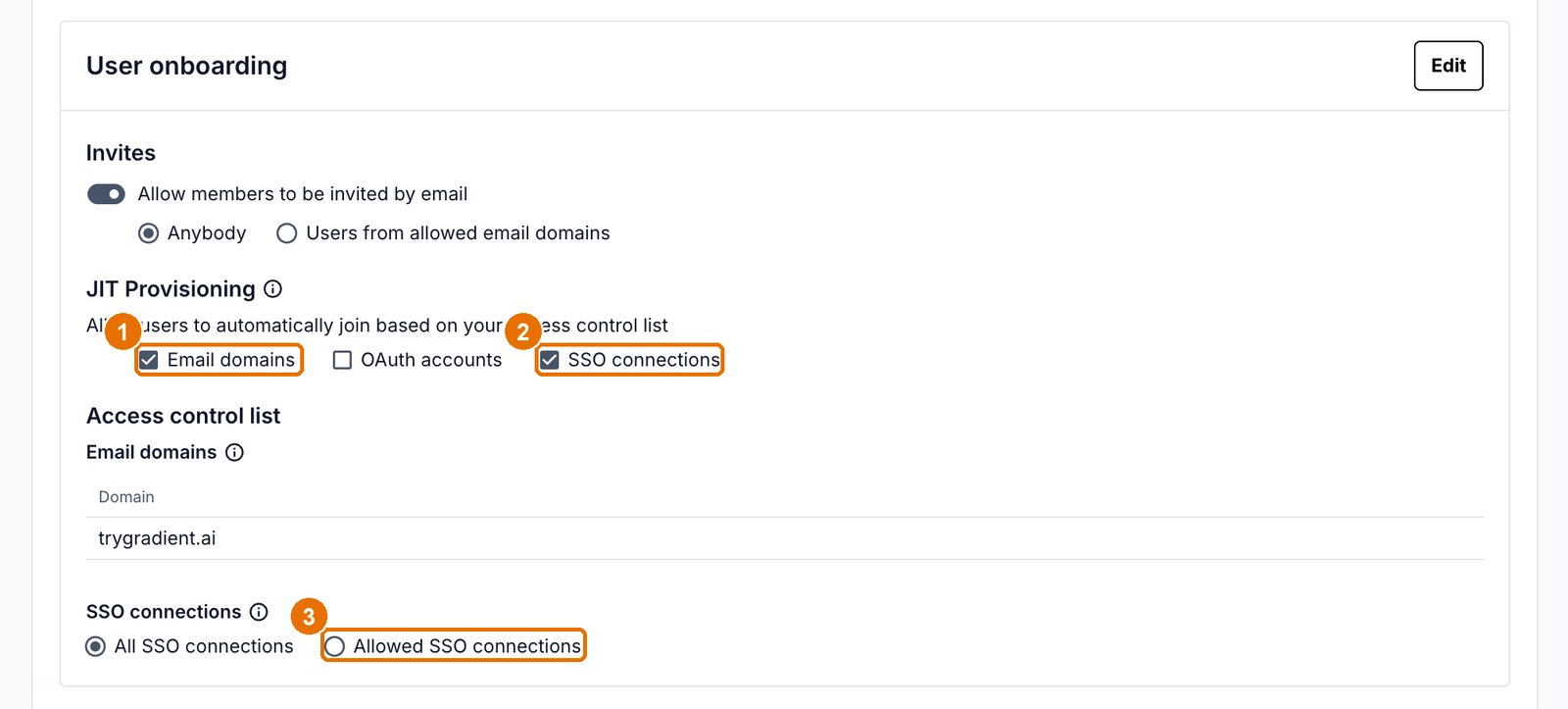 Email-domain joining appears in two places. **Settings, Team** has the plain **Auto-join by
email domain** switch, and this card has the same control as **JIT Provisioning, Email
domains**. They write the same setting, so turning it off in either place is enough. Check both
if you are auditing.
Turning auto-join off has a side effect. On the shared sign-in page at
`app.trygradient.ai/login`, Gradient identifies your organization from the email address, and
for a person who has **never signed in before** that lookup depends on domain auto-join. With
auto-join off, a new hire sees "no connections found" and no explanation. Give your team the
organization sign-in link below, which does not need the lookup at all.
***
## Sign-in links for your team
There are two ways to reach the sign-in page, and for an enforced organization only one of them
works for everybody.
| Link | Who it works for |
| ----------------------------------- | --------------------------------------------------------------------------- |
| `app.trygradient.ai/login` | People who have signed in before. New hires fail here once you enforce SSO. |
| `app.trygradient.ai/login/your-org` | Everybody, including first-time users. |
Find your organization link on **Settings, Identity and SSO**, under **Your sign-in link**. Copy
it and give it to your team, put it in your onboarding documentation, and use it in your
identity provider's application tile. It works as soon as your connection is active, and there
is nothing to set up.
Email-domain joining appears in two places. **Settings, Team** has the plain **Auto-join by
email domain** switch, and this card has the same control as **JIT Provisioning, Email
domains**. They write the same setting, so turning it off in either place is enough. Check both
if you are auditing.
Turning auto-join off has a side effect. On the shared sign-in page at
`app.trygradient.ai/login`, Gradient identifies your organization from the email address, and
for a person who has **never signed in before** that lookup depends on domain auto-join. With
auto-join off, a new hire sees "no connections found" and no explanation. Give your team the
organization sign-in link below, which does not need the lookup at all.
***
## Sign-in links for your team
There are two ways to reach the sign-in page, and for an enforced organization only one of them
works for everybody.
| Link | Who it works for |
| ----------------------------------- | --------------------------------------------------------------------------- |
| `app.trygradient.ai/login` | People who have signed in before. New hires fail here once you enforce SSO. |
| `app.trygradient.ai/login/your-org` | Everybody, including first-time users. |
Find your organization link on **Settings, Identity and SSO**, under **Your sign-in link**. Copy
it and give it to your team, put it in your onboarding documentation, and use it in your
identity provider's application tile. It works as soon as your connection is active, and there
is nothing to set up.
 Sign-in started from your identity provider's own application tile also works, and needs neither
link.
***
## Plan for lockout before you enforce
An enforced organization depends on your identity provider. If that provider has an outage, or a
SAML certificate expires, or an OIDC client secret is rotated without telling us, nobody in your
organization can sign in. Prepare for it now.
A named account with the **owner** role, outside your directory sync, allowed to sign in by
email magic link with multi-factor authentication. Set it up at the same time as the
connection, not after an incident.
Put the multi-factor recovery codes in your password manager, not with the person who owns
the account.
The break-glass owner opens Settings, Identity and SSO, and allows all sign-in
methods again on the Authentication policy card. Access returns immediately. Contact Gradient
support if nobody can sign in at all.
Turn enforcement back on only after one real sign-in through the identity provider works
again.
***
## Troubleshooting
They used the shared sign-in page and have never signed in before. Send them your
organization sign-in link, `app.trygradient.ai/login/your-org`.
Check the group mapping on the connection, and check that the person is in the expected
group in your identity provider. Role names must be exactly `owner`, `admin`, `member`, or
`reviewer`.
After a fix, have them sign out and in again rather than waiting.
Allow about five minutes. A new sign-in applies the change at once.
On a SAML connection, check the signing certificate first. An expired certificate is the most
common cause, and it fails for everyone at the same time. On an OIDC connection, check whether
the client secret was rotated in your identity provider. Use your break-glass owner to restore
access while you fix either one.
Sign in with the break-glass owner and allow all sign-in methods again. If that
account cannot sign in either, contact Gradient support.
***
## What single sign-on does not do
* **It does not create or remove accounts.** SSO authorizes people who reach the sign-in page.
To have your directory create, update, and deactivate Gradient members automatically, add
[directory sync (SCIM)](/docs/guides/scim) as well.
* **It does not manage members inside Gradient.** You still see and manage people at
**Settings, Team**, unless SCIM is turned on, which makes your directory the source of truth.
* **It does not apply to candidates.** Candidates never sign in. Their assessment link is their
credential, and it is unaffected by your sign-in policy. See
[Authentication](/docs/guides/authentication).
Sign-in started from your identity provider's own application tile also works, and needs neither
link.
***
## Plan for lockout before you enforce
An enforced organization depends on your identity provider. If that provider has an outage, or a
SAML certificate expires, or an OIDC client secret is rotated without telling us, nobody in your
organization can sign in. Prepare for it now.
A named account with the **owner** role, outside your directory sync, allowed to sign in by
email magic link with multi-factor authentication. Set it up at the same time as the
connection, not after an incident.
Put the multi-factor recovery codes in your password manager, not with the person who owns
the account.
The break-glass owner opens Settings, Identity and SSO, and allows all sign-in
methods again on the Authentication policy card. Access returns immediately. Contact Gradient
support if nobody can sign in at all.
Turn enforcement back on only after one real sign-in through the identity provider works
again.
***
## Troubleshooting
They used the shared sign-in page and have never signed in before. Send them your
organization sign-in link, `app.trygradient.ai/login/your-org`.
Check the group mapping on the connection, and check that the person is in the expected
group in your identity provider. Role names must be exactly `owner`, `admin`, `member`, or
`reviewer`.
After a fix, have them sign out and in again rather than waiting.
Allow about five minutes. A new sign-in applies the change at once.
On a SAML connection, check the signing certificate first. An expired certificate is the most
common cause, and it fails for everyone at the same time. On an OIDC connection, check whether
the client secret was rotated in your identity provider. Use your break-glass owner to restore
access while you fix either one.
Sign in with the break-glass owner and allow all sign-in methods again. If that
account cannot sign in either, contact Gradient support.
***
## What single sign-on does not do
* **It does not create or remove accounts.** SSO authorizes people who reach the sign-in page.
To have your directory create, update, and deactivate Gradient members automatically, add
[directory sync (SCIM)](/docs/guides/scim) as well.
* **It does not manage members inside Gradient.** You still see and manage people at
**Settings, Team**, unless SCIM is turned on, which makes your directory the source of truth.
* **It does not apply to candidates.** Candidates never sign in. Their assessment link is their
credential, and it is unaffected by your sign-in policy. See
[Authentication](/docs/guides/authentication).