

Multi-factor authentication
Multi-factor authentication (MFA) asks for a one-time code in addition to the usual sign-in. It protects your candidate data if someone’s email account or password is stolen. In Gradient, MFA is a setting for the whole organization. You turn it on once and it applies to every member. There is no per-person switch, and there is no account-wide default that Gradient sets for you.MFA settings live on Settings, Identity and SSO, which is an enterprise feature. If you do
not see that page, contact your Gradient representative.
What Gradient supports: Authenticator apps only
Gradient uses TOTP, the six-digit code produced by an authenticator app such as Google Authenticator, Microsoft Authenticator, 1Password, or Authy. Gradient does not send codes by SMS. Text-message codes can be intercepted by SIM swapping, and supporting them would mean holding a phone number for every member. An authenticator app avoids both problems.Turning on MFA for your organization
You must be an owner. Identity settings, including MFA, are owner-only.- Go to Settings, Identity and SSO.
- Scroll to Authentication policy, then to the Authentication settings block, and click Edit.
- Under Secondary authentication, turn on Require MFA for all users.
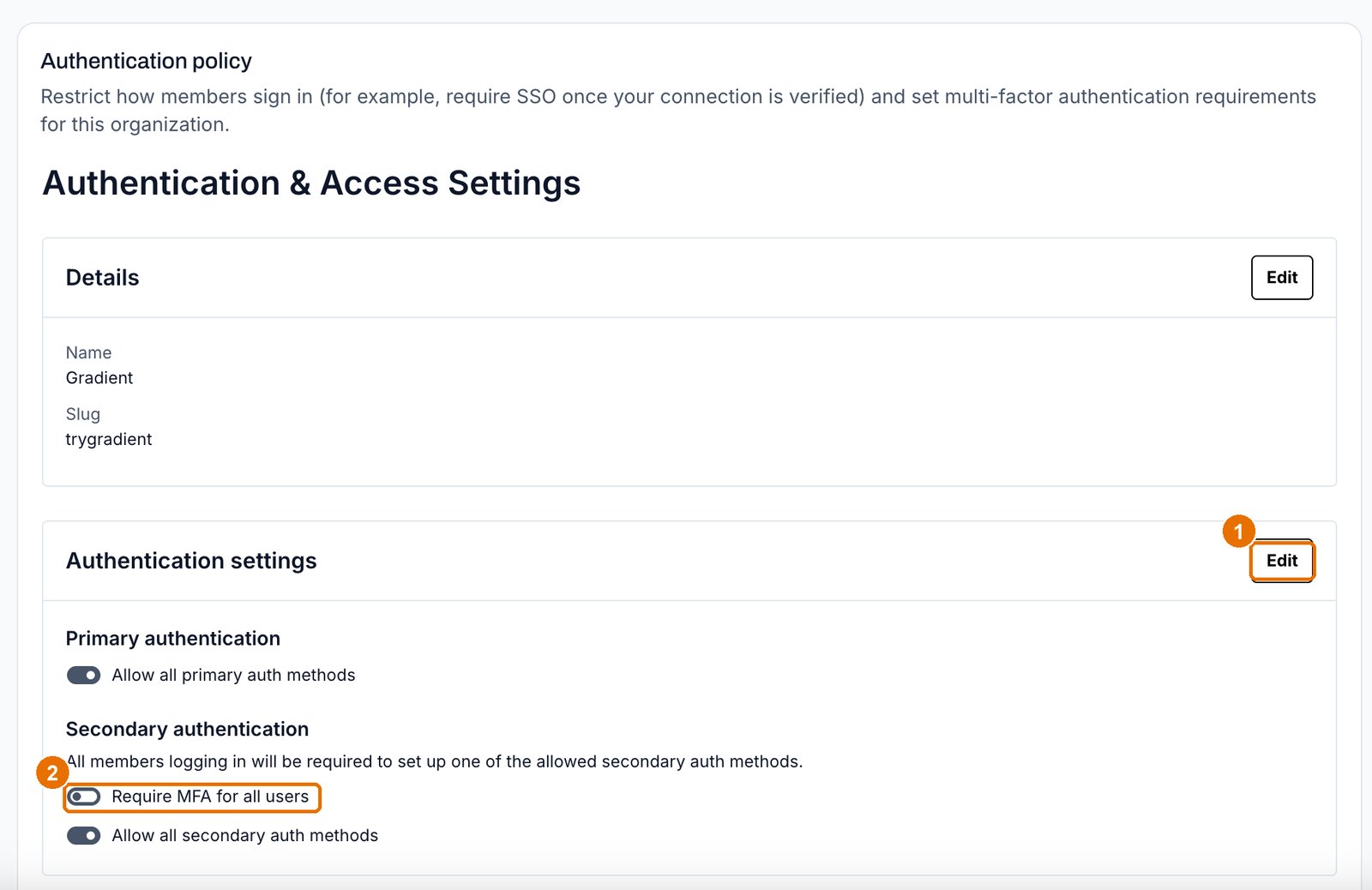
1 opens the block for editing, 2 is the switch that requires a second factor
What members see the first time
1
They sign in as usual
Email link, password, Google, or single sign-on, whichever your organization allows.
2
Gradient asks them to enroll
They scan a QR code with their authenticator app and enter the first six-digit code to
confirm it works.
3
They save their recovery codes
Gradient shows a set of one-time recovery codes at enrollment. See below.
4
Every later sign-in asks for a code
They open their authenticator app and enter the current six digits.
Recovery codes, and why they matter
Recovery codes are the way back in when someone loses their phone. Each code works once. Tell your team to store them in a password manager, not in the notes app on the same phone that holds the authenticator. A recovery code stored on the lost device is not a recovery code. For your break-glass owner, the account you keep for emergencies, store the recovery codes in your team password manager rather than with the person who owns the account. That is what makes the account usable when the person is unavailable, which is exactly when you need it.MFA with single sign-on: Deciding who enforces it
If your organization uses single sign-on, your identity provider probably enforces MFA already. Adding Gradient MFA on top means members answer two prompts on the way in. Most customers pick one of these:
Whichever you pick, keep MFA on your break-glass owner. That account signs in with an
email link rather than through your identity provider, so it does not inherit your provider’s
MFA, and it is the one account that must not be easy to take over. See
Plan for lockout.
Troubleshooting
A member lost their phone
A member lost their phone
They sign in with one of their recovery codes, then enroll their new device. If they have no
recovery codes left, contact Gradient support: an administrator cannot reset another member’s
factor from the dashboard.
The code is rejected every time
The code is rejected every time
Almost always a clock problem. The device running the authenticator app must have the correct
time. Turn on automatic time in the phone settings and try again.
A member never saw the enrollment screen
A member never saw the enrollment screen
They have a session that started before you turned MFA on. Ask them to sign out and sign in
again.
We want MFA for some people only
We want MFA for some people only
That is not possible today. The policy applies to everyone in the organization. If you need
per-person rules, enforce them in your identity provider instead.
What MFA does not cover
- Candidates. They never sign in, so there is no second factor to ask for. Their assessment link is their credential. See Authentication.
- API keys. A key is a machine credential and is not subject to MFA. Rotate keys instead, and keep them out of shared documents. See Managing API keys.