

Directory sync (SCIM)
SCIM connects your directory to Gradient so that people are added, updated, and deactivated automatically. Someone joins the mapped group in your identity provider and they appear in Gradient. They leave the company and their access ends without anyone opening Gradient. Use SCIM with single sign-on. SSO decides how people prove who they are. SCIM decides who exists and what role they hold.If your single sign-on connection uses OIDC, SCIM is the only way to drive Gradient roles
from your directory. An OIDC connection cannot map groups to roles by itself. SCIM group mapping
works whichever protocol people sign in with.
Directory sync is an enterprise feature. If you do not see Settings, Identity and SSO,
contact your Gradient representative to turn it on for your organization.
What you need
- A Gradient owner account. Identity settings are owner-only.
- An identity provider that supports SCIM 2.0, such as Okta, Microsoft Entra ID, or Ping.
- A working SSO connection. Set that up first.
- A password manager or vault, ready before you start. The bearer token is shown once.
Part 1: Create the connection in Gradient
- Go to Settings, Identity and SSO.
-
On the Directory sync (SCIM) card, click Create.
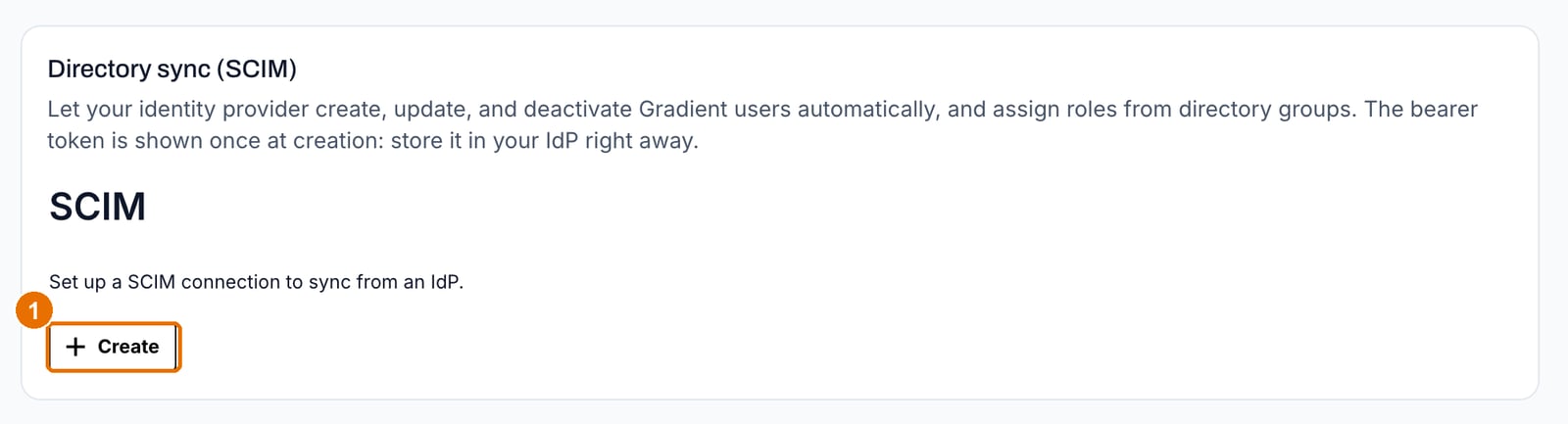
The Directory sync card, before any connection exists
- Copy the SCIM endpoint URL and the bearer token.
Part 2: Turn on provisioning in your identity provider
- Open the Gradient application you created for SSO, and find its provisioning settings.
- Paste the SCIM endpoint URL and the bearer token. The token is a bearer header credential, not a password field.
- Test the connection. Your identity provider should report success before you go further.
- Turn on the actions you want:
- Create users, so new joiners appear in Gradient.
- Update user attributes, so name changes follow.
- Deactivate users, so leavers lose access.
- Assign the people or groups who should have Gradient access.
Part 3: Map your groups to Gradient roles
In Gradient, go to Settings, Identity and SSO and scroll to Automatic Role assignments. Click Edit, then map each directory group to one Gradient role, using the names exactly as written, in lower case:owner, admin, member, or reviewer. Most people should map to
member, which can run a hiring process but cannot change the workspace.

Automatic Role assignments, at the bottom of the page
What changes in Gradient once SCIM is on
Your directory becomes the source of truth for membership. Settings, Team stops being a place where members are changed:- The invite and remove controls are hidden.
- The same actions are refused by the API, with the message “Members are managed by your identity provider (SCIM). Make changes there instead.”
- The member list still shows everyone, with their role and their status.
People provisioned by your directory appear in the Gradient member list before their first
sign-in, so you can confirm a rollout worked without waiting for anyone to log in.
What happens when you deactivate someone
Deactivation in your directory reaches Gradient in one push. In order:- Your identity provider marks the user inactive.
- Their Gradient account, roles, and sessions are revoked centrally, at once. They cannot sign in again.
- Gradient marks the member deactivated in your member list. The record stays, so the work they did and the scores they changed keep their name.
Troubleshooting
The connection test fails in my identity provider
The connection test fails in my identity provider
Check that the bearer token was pasted whole, with no leading or trailing space, and that it
is set as a bearer token rather than a password. If the token was lost, create a new
connection in Gradient and use its token.
Someone was provisioned but has the wrong role
Someone was provisioned but has the wrong role
They are probably not in a mapped group, so they arrived with the default reviewer role.
Add them to the correct group in your identity provider and let it push the update. Role
names must be exactly
owner, admin, member, or reviewer.I cannot invite a member in Gradient
I cannot invite a member in Gradient
That is expected once SCIM is on. Add the person in your directory instead.
A leaver still appears in the member list
A leaver still appears in the member list
Check their status. A deactivated member stays in the list on purpose, so your records keep
their name, but they cannot sign in. If the status still reads active, check that your
identity provider has deactivation turned on and look at its provisioning log.
Nobody is syncing at all
Nobody is syncing at all
Confirm the people are assigned to the Gradient application in your identity provider.
Assignment, not group mapping, is what decides who is pushed.
What directory sync does not do
- It does not manage candidates. Candidates are not members and never appear in your directory.
- It does not replace your break-glass account. Keep one owner outside SCIM scope, so a directory outage cannot lock you out. See Plan for lockout.
- It does not change how people sign in. That is your SSO connection and your authentication policy.