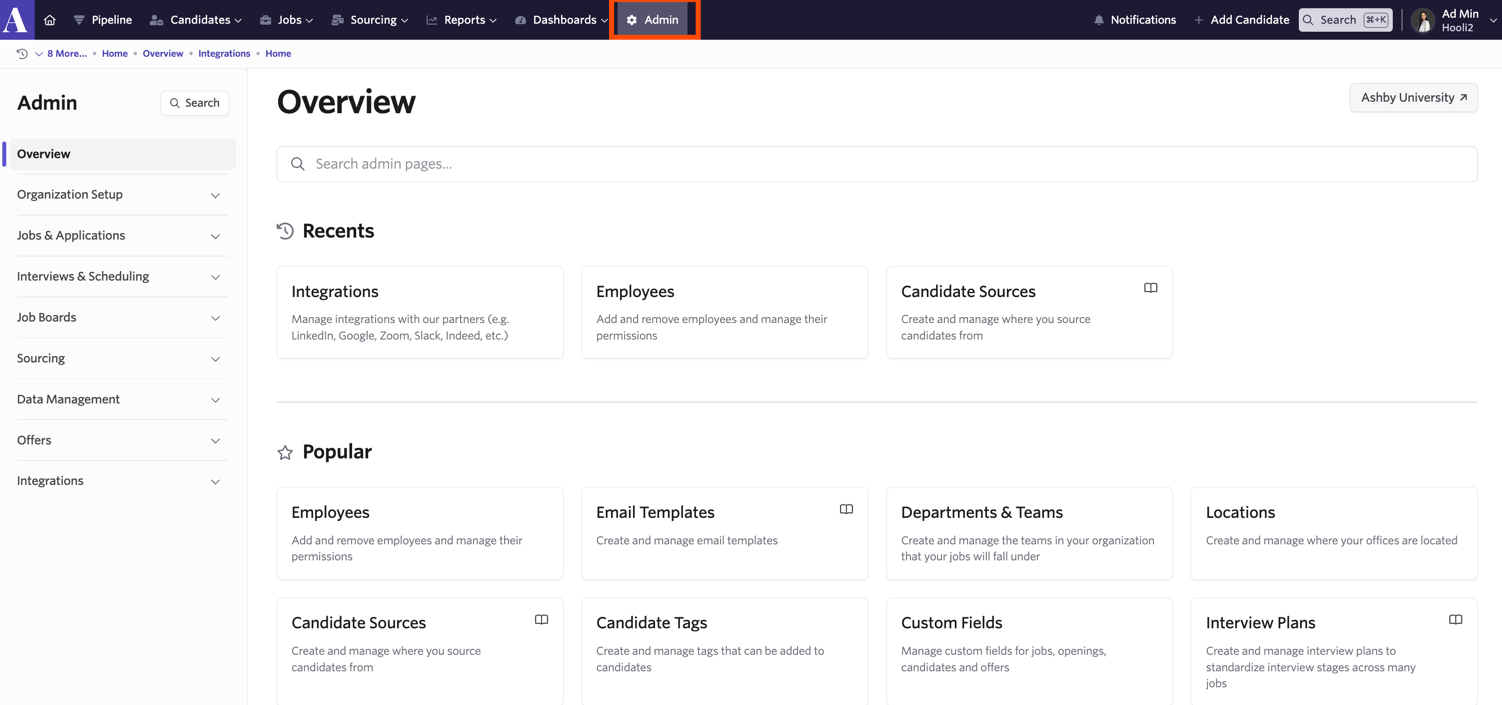
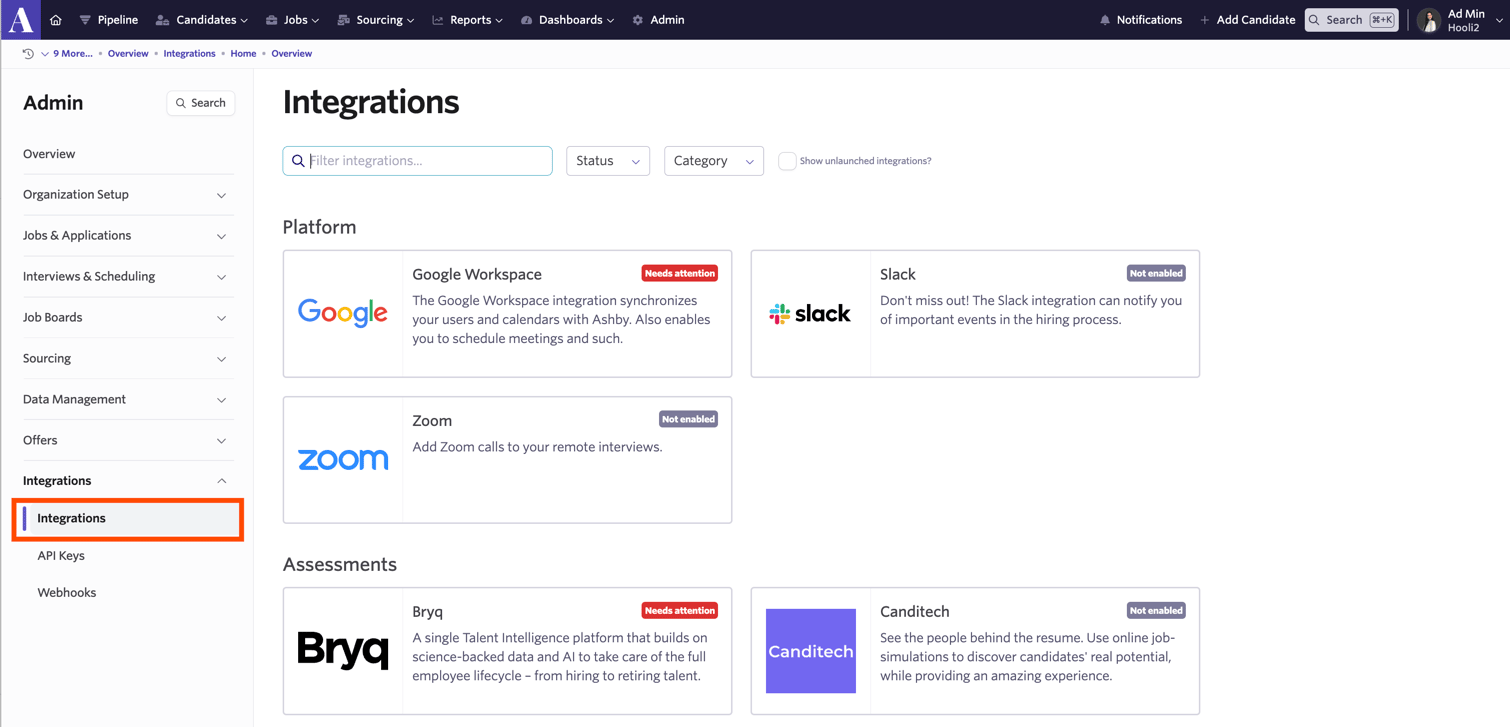
Open the Integrations Marketplace and find the Gradient tile. Tick
Show unlaunched integrations if you don’t see it yet. Enable the
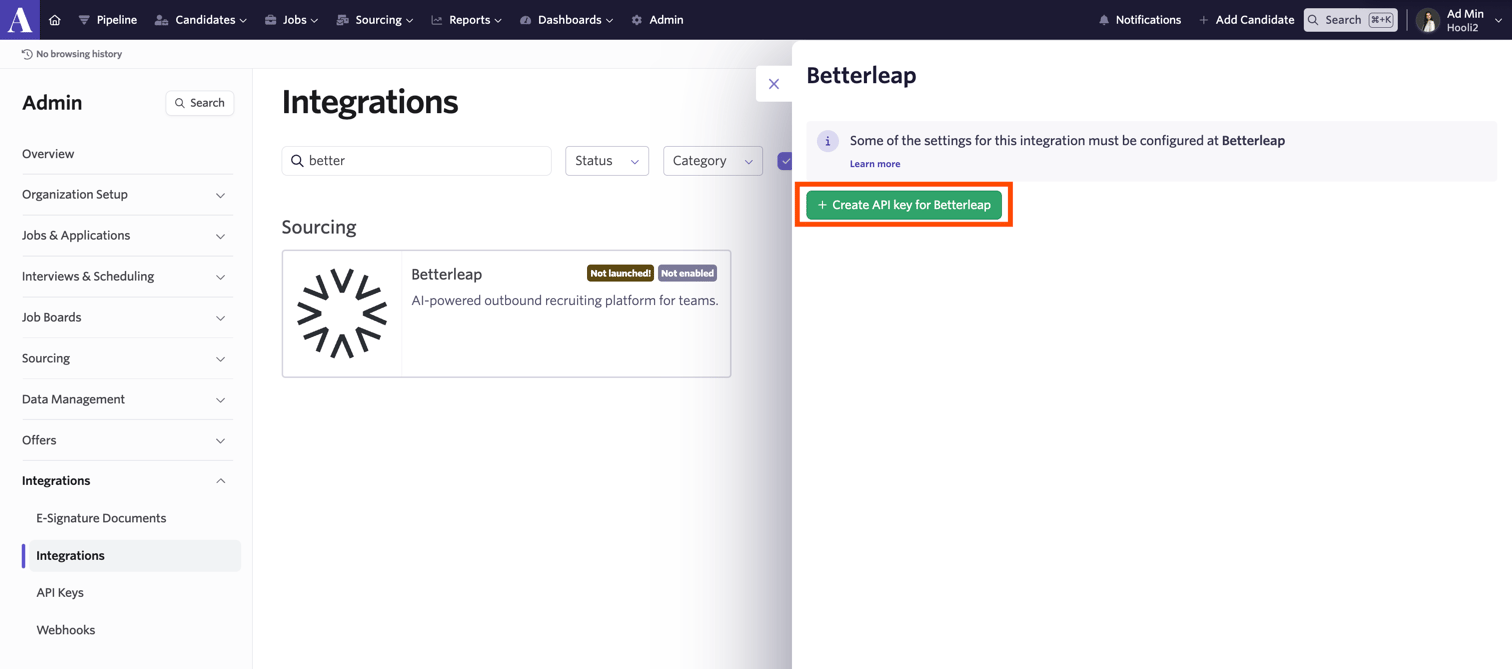
integration on the tile to create an Ashby API key.
The Gradient tile in Ashby's Integrations Marketplace
Copy the key from the tile now. Ashby only shows it once.
Copy the API key from the tile
The key is shown once. If you lose it, disable and re-enable the integration on
the tile to create a new one, then reconnect in Gradient.
Part 2: Connect Ashby in Gradient and get your Gradient key
Do both of these in one visit to Gradient: connect your Ashby key, then generate
the Gradient key you’ll paste back into Ashby in Part 3.
In Gradient, go to Settings, Integrations.
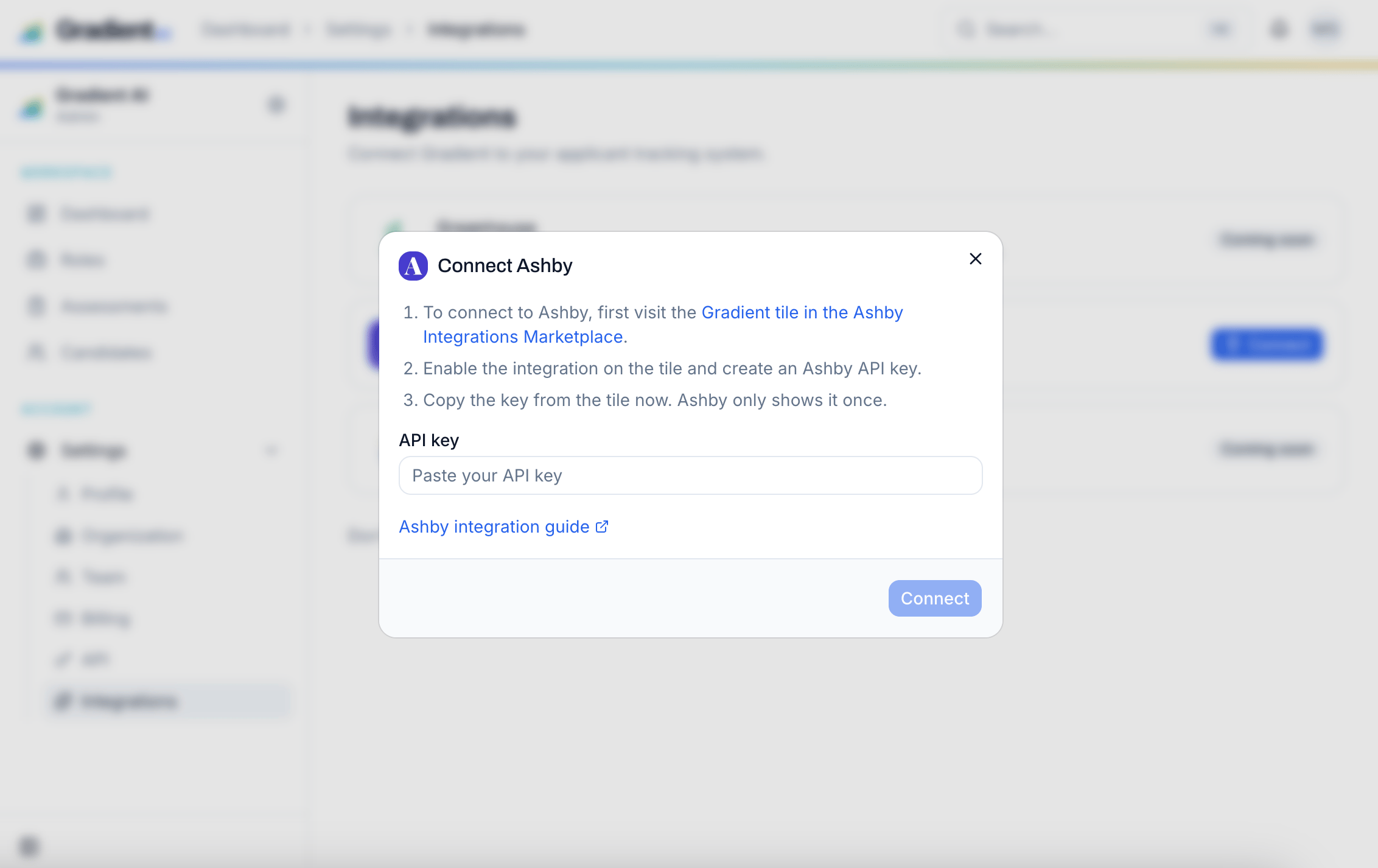
On the Ashby card, click Connect.
Paste your Ashby API key and click Connect. Gradient checks the key with a
live call before storing it (encrypted at rest).
Paste your Ashby API key into Gradient
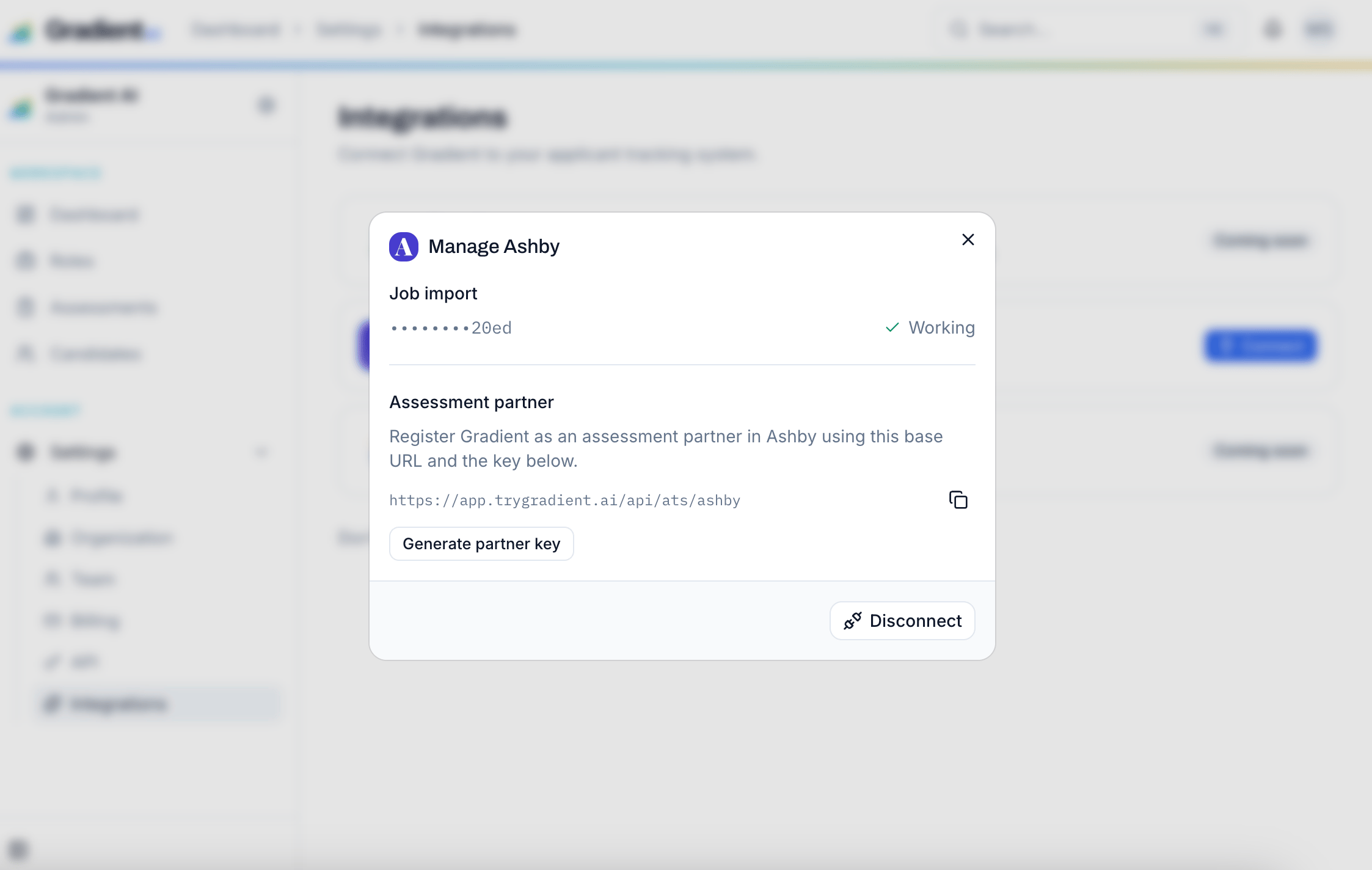
Once connected, the Ashby card shows Manage. Open it: Job import
should read Working.
Under Assessment partner, click Generate partner key and copy the key.
It is shown once. (Use Rotate partner key later to replace it; the old
one stops working immediately.)
Job import working, and the Generate partner key button
Now paste the Gradient partner key back into Ashby to finish connecting the two tools.
In Ashby, open the Gradient tile in the Integrations Marketplace.
Fill in its configuration:
Partner API key (the Gradient-named key field): paste the Gradient
partner key from Part 2.
Ashby API key: the Ashby key from Part 1 (the one Gradient uses to write
scores back).
Click Enable Gradient.
All required fields must be filled before enabling. An empty partner key leaves
the app not fully configured, and Enable will fail with a generic Ashby
error.
Ashby can now start Gradient assessments from a candidate’s profile, and
completed scores post back automatically.
Part 5: Add a Gradient assessment to a job in Ashby
With the app enabled, you attach a Gradient assessment to the point in your Ashby
hiring process where you want candidates to take it. In Ashby, an assessment is an
activity on an interview stage. See Ashby’s own guide,
Setting up assessment integrations,
for the authoritative version.
1
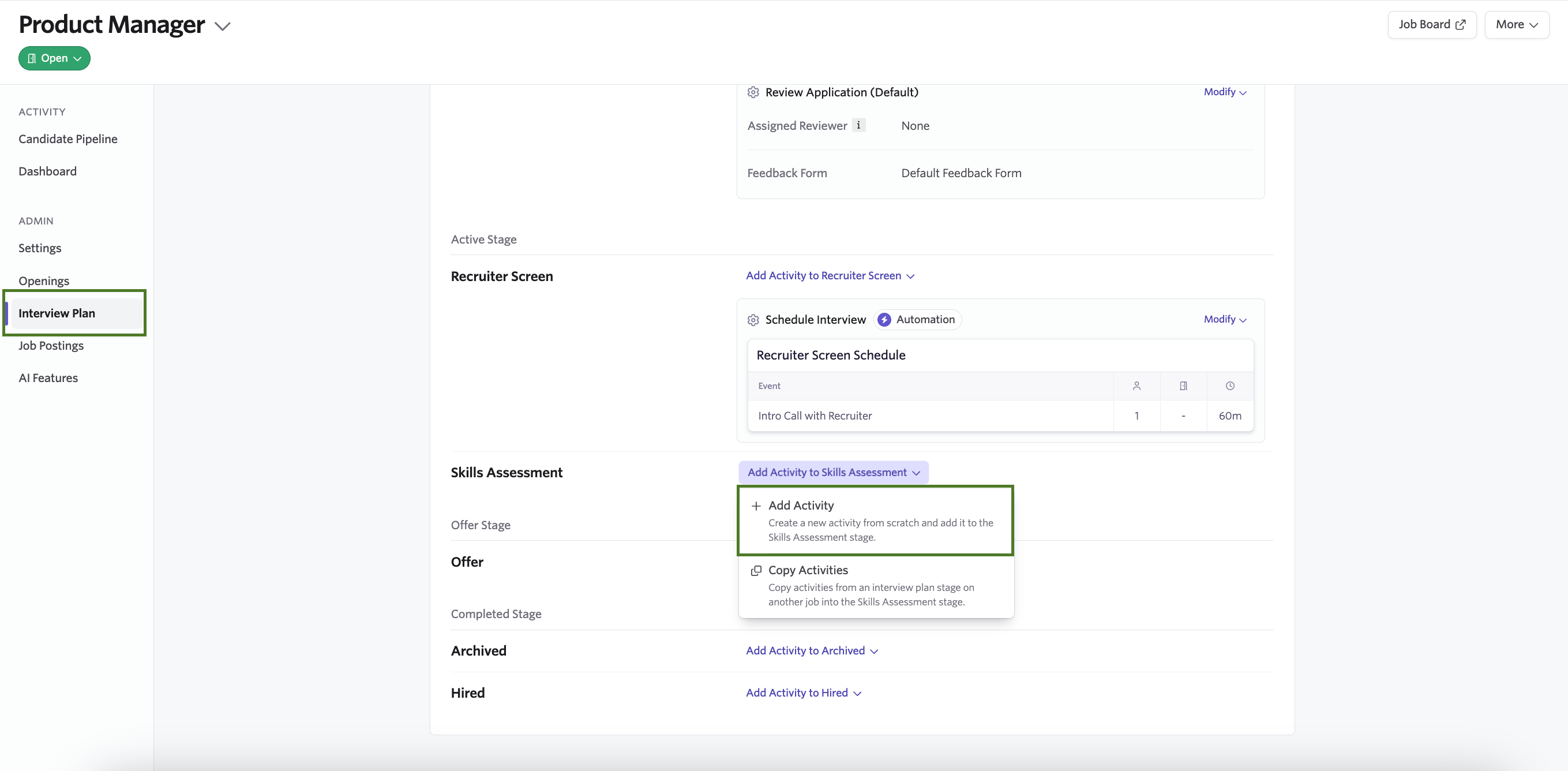
Open the job's interview plan
In Ashby, open the job and choose Interview Plan from the left sidebar.
On the stage where you want the assessment, click Add Activity, then pick
Gradient from the Integrations section.
Add a Gradient activity to an interview stage in Ashby
2
Choose the assessment and reviewers
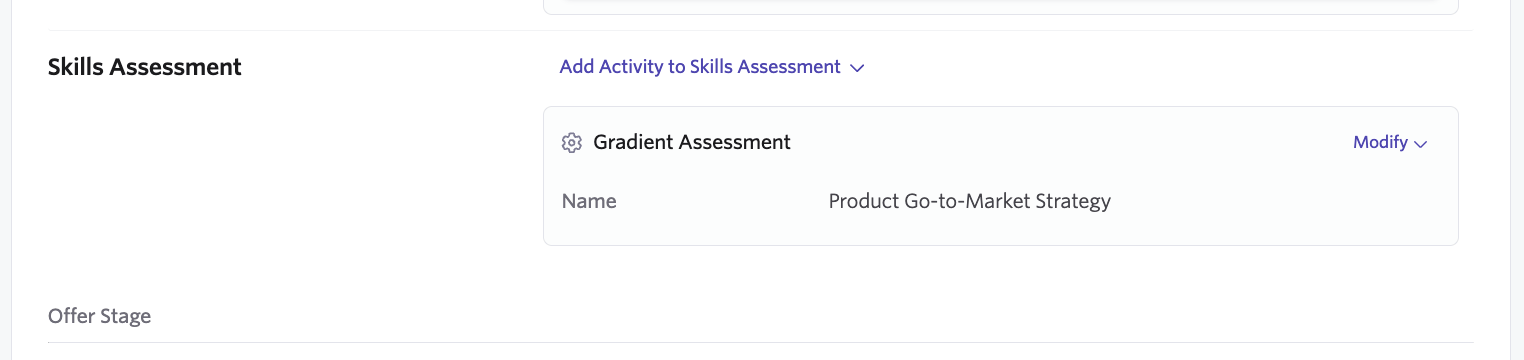
Select the Gradient assessment from the dropdown — the list comes from your
connected Gradient workspace — and choose who should be notified to review the
results once a candidate finishes.
The Gradient assessment attached to the stage
3
Start it from a candidate
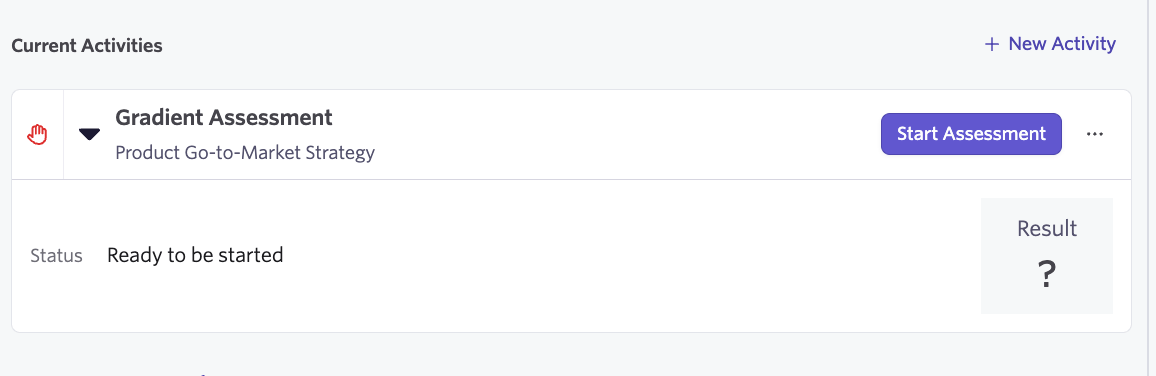
On a candidate at that stage, the Gradient activity shows a Start
Assessment button. Once the candidate finishes, the score and summary post
back into the same activity.
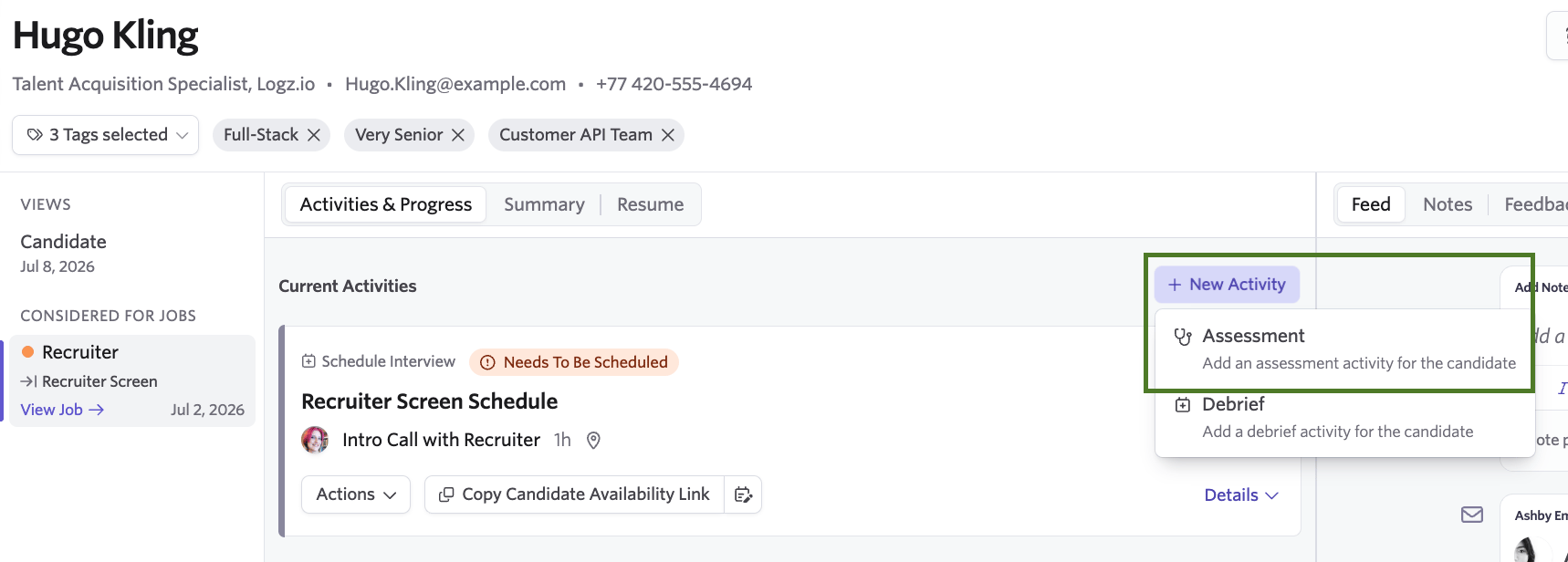
You can also use Ashby to send a Gradient assessment to an individual candidate, outside of an interview plan.To send it to one candidate as a one-off, open their profile in Ashby, click New Activity, and
choose Assessment. Pick the Gradient assessment the same way. The score and
summary post back to that activity when they finish.
Adding a one-off assessment from a candidate's profile in Ashby
Gradient appears in the Integrations activity list (and the Assessment
option above) only after the app is enabled (Part 3). If you do not see it,
revisit the Gradient tile configuration.
Enable Gradient fails in Ashby ('Something went wrong')
The app is not fully configured. Confirm the partner key field is filled
on the Ashby tile (Part 3). The error ID in Ashby’s message is Ashby-internal,
so share it with Ashby support if the field is correct and it still fails.
Job import returns an authorization error
The connected Ashby key lacks job/application read access. Create a key
with those scopes and reconnect in Gradient.
Scores aren't posting back to Ashby
The write-back uses the Ashby key stored in Gradient, which needs candidate
write access. Reconnect with a key that has it. Verify the connection with
Check connection in Settings, Integrations.